How to Create a Professional Website Without Coding in 2026: Complete Beginner's Guide
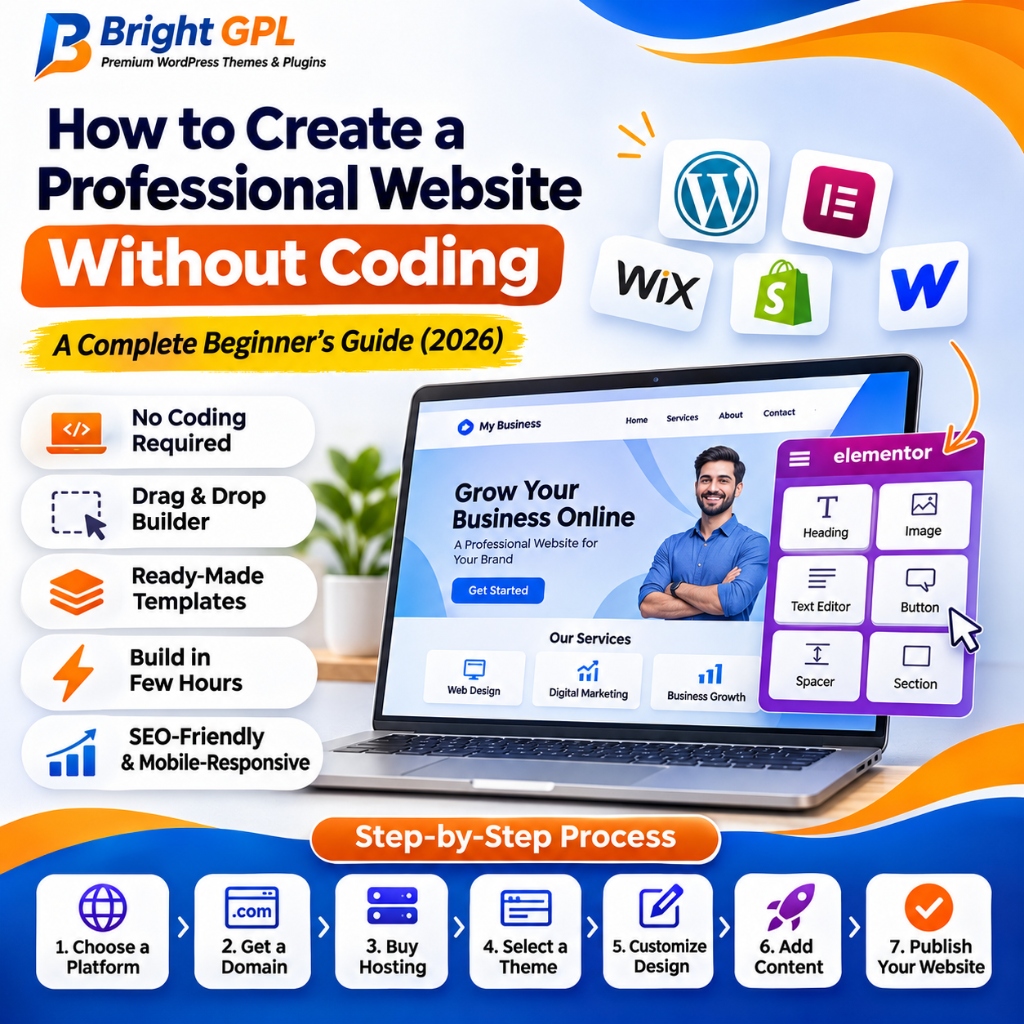
Creating a professional website no longer requires advanced programming knowledge or years of web development experience. With modern website builders, WordPress themes, drag-and-drop editors, and no-code tools, almost anyone can build a beautiful and functional website without writing a single line of code.
Whether you want to create a business website, personal portfolio, online store, blog, or agency website, several tools can help you get started quickly.
If you are wondering how to create a professional website without coding, this guide will walk you through everything you need to know. We will explore website builders, essential tools, design tips, important features, and a step-by-step process for launching your own website.
By the end of this guide, you will understand how to build a website without coding without hiring an expensive developer or learning complicated programming languages.
⚡ Quick Answer: How to Create a Professional Website Without Coding?
You can create a website without coding by using a visual platform or self-hosted WordPress paired with a drag-and-drop visual page builder such as Elementor Pro.
The basic process involves:
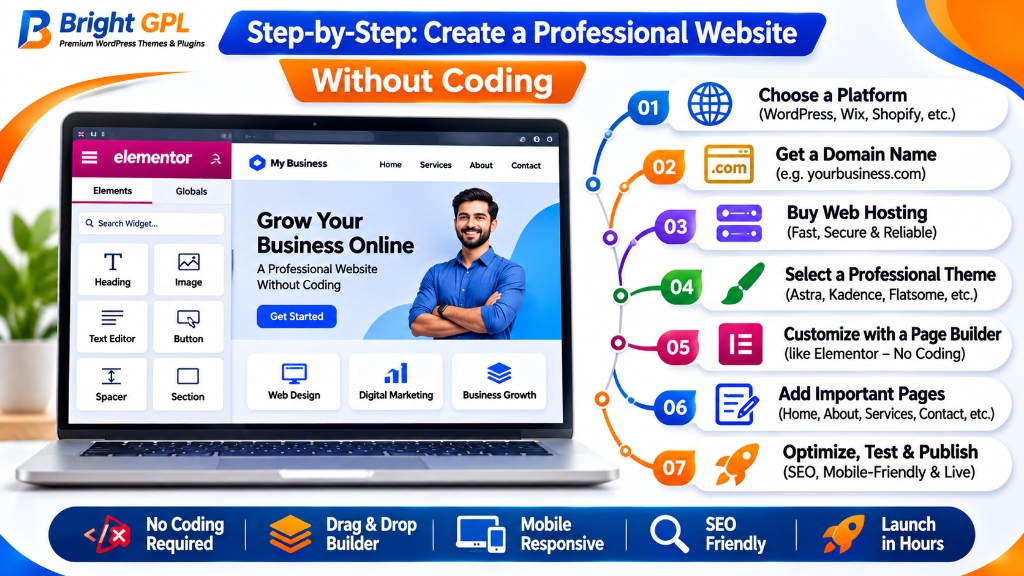
- Choosing a website platform.
- Registering a domain name.
- Purchasing reliable web hosting if required.
- Selecting a professional website theme.
- Customizing the design using a visual editor.
- Adding essential pages and website content.
- Configuring SEO and security settings.
- Testing the website on mobile and desktop.
- Publishing your website.
With the right tools and preparation, beginners can create professional-looking websites without programming experience.
1. What Is a No-Code Website Builder?
A no code website builder is a platform that allows users to create websites using visual tools instead of writing HTML, CSS, JavaScript, or other programming languages.
These platforms usually provide ready-made templates, drag-and-drop editors, design elements, and built-in website management features.
Instead of manually creating website layouts, you can select elements, move them around, change colors, edit text, upload images, and customize different sections through a visual interface.
How Does a No-Code Website Builder Work?
Most website builders follow a simple process:
- Select a website template.
- Choose your preferred design.
- Add text, images, and other elements.
- Customize website colors and fonts.
- Configure navigation menus.
- Preview your website.
- Publish it online.
This approach makes website development without coding more accessible to beginners, entrepreneurs, freelancers, and small business owners.
2. Best Tools to Create a Website Without Coding
When searching for the best tools to build a website without coding, choosing the right platform is one of the most important steps. Different tools offer different customization options, pricing structures, and functionalities. If you are learning how to make a business website without coding, here are popular options to consider.
1. WordPress
WordPress is one of the most widely used website platforms in the world. It powers over 43% of all websites and provides extensive customization options through WordPress themes, plugins, and visual page builders.
With WordPress, users can create:
- Business websites.
- Blogs and news websites.
- Portfolio websites.
- E-commerce stores.
- Membership websites.
- Educational websites.
- Agency websites.
You can use a visual page builder like Elementor Pro or pre-designed Elementor Template Kits to design website pages without manually writing code.
WordPress is particularly useful for users who want greater control over their website, hosting, design, and functionality.
2. Wix
Wix is a website-building platform that provides visual editing tools and ready-made templates. It allows users to create business websites, portfolios, blogs, and online stores. Its drag-and-drop editor makes it relatively easy for beginners to customize website layouts. Wix also provides hosting and several website management features through its platform.
3. Shopify
Shopify is primarily designed for building and managing online stores. It allows business owners to create product pages, manage inventory, configure payments, and handle online orders without developing an e-commerce platform from scratch. It is a useful option for entrepreneurs who want to sell products online.
4. Webflow
Webflow is a visual website development platform that offers detailed design and layout controls. It is suitable for designers, agencies, and businesses that want more flexibility over their website appearance. Although it offers visual editing, some advanced features may require time to learn.
5. Squarespace
Squarespace offers professionally designed templates and website management tools. It is popular among photographers, creative professionals, consultants, and small businesses that want visually appealing websites.
Website Builder Comparison
| Platform | Best For | Main Advantage |
|---|---|---|
| WordPress | All types of websites | Flexibility and unlimited customization |
| Wix | Beginners and small businesses | Visual drag-and-drop editing |
| Shopify | Online stores | E-commerce management |
| Webflow | Designers and agencies | Advanced visual design |
| Squarespace | Creative portfolios | Professional templates |
When searching for the best website builder for beginners, our recommendation is WordPress. It is a strong option if you want flexibility, extensive themes, plugins, and control over your website without monthly lock-ins. However, the best platform depends on your business requirements and technical preferences.
3. Choose a Domain Name and Web Hosting
Before building your website, you need a domain name and an appropriate hosting solution.
What Is a Domain Name?
A domain name is your website's online address. For example:
- example.com
- mybusiness.in
- yourbrand.com
Choose a domain that is:
- Easy to remember.
- Relevant to your business.
- Short and simple.
- Easy to spell.
- Suitable for your brand identity.
A professional domain name helps establish trust and makes your website easier to recognize.
What Is Web Hosting?
Web hosting is a service that stores your website files and makes them accessible through the internet.
When selecting hosting, consider:
- Server performance.
- Uptime reliability.
- Security features.
- Backup options.
- Customer support.
- SSL support.
- Scalability.
For WordPress websites, choose hosting that supports the latest recommended PHP (PHP 8.1+) and database requirements (MySQL 8.0 or MariaDB 10.5+).
4. Select a Professional Website Theme
A website theme determines the overall appearance and layout of your website. Instead of designing everything from scratch, you can use a professionally designed theme to create a consistent website structure.
A good theme should offer:
- Responsive layouts.
- Customization options.
- Clean design.
- Fast loading performance.
- SEO-friendly structure.
- Compatibility with essential plugins.
- Regular updates.
- Reliable developer support.
Popular WordPress Themes to Consider
Some popular WordPress themes include:
- Astra Pro: A lightweight multipurpose theme suitable for business websites, blogs, and portfolios with instant starter templates.
- GeneratePress Premium: Known for its lightweight structure, clean semantic code, and speed customization options.
- Kadence: Offers flexible design controls and ready-made starter templates.
- Blocksy: Provides modern layouts and customization features built for Gutenberg blocks.
- Flatsome: A popular choice for WooCommerce stores and online shopping websites with its built-in UX builder.
Before selecting a theme, check its compatibility, documentation, update history, and licensing conditions.
5. Use a Drag-and-Drop Website Builder
A visual website builder makes it easier to create professional layouts without writing code. One popular option is Elementor. Elementor provides a visual editing environment where users can add and customize different website elements in real time.
What Can You Create with Elementor?
- Website headers.
- Navigation menus.
- Hero sections.
- Service sections.
- Contact forms.
- Testimonials.
- Pricing tables.
- Image galleries.
- Landing pages.
- Footer sections.
You can upgrade your page design capabilities with ElementsKit Pro for extra header, footer, and megamenu widgets.
Steps to Build a Website Using Elementor
-
Step 1: Install WordPress
Set up WordPress through your hosting dashboard with 1-click auto-installers. -
Step 2: Install a Compatible Theme
Choose a theme like Astra or GeneratePress that supports your preferred visual builder. -
Step 3: Install Elementor
Install the Elementor plugin from the WordPress repository or upload Elementor Pro. Check our Plugin Installation Guide if you need assistance. -
Step 4: Create a New Page
Open Pages in the WordPress dashboard, select Add New, and create your homepage. -
Step 5: Edit with Elementor
Click the "Edit with Elementor" button to open the live visual canvas. -
Step 6: Add Website Elements
Drag and drop headings, text, images, buttons, columns, and interactive sections. -
Step 7: Customize the Design
Adjust fonts, colors, spacing, backgrounds, and responsive device breakpoints. -
Step 8: Publish Your Page
Preview your design across desktop, tablet, and mobile views, then click Publish.
This workflow makes it possible to understand how to design a professional website easily without manually writing front-end code.
6. Essential Pages Every Professional Website Needs
A professional website should provide visitors with clear information about your business, services, and contact details. Depending on your business type, consider creating the following pages.
Homepage
The homepage is often the first page visitors see. It should clearly explain:
- What your business offers.
- Who your services are for.
- Your main benefits.
- Why customers should choose you.
- How visitors can contact you.
Include a clear headline and an appropriate call-to-action button.
About Us Page
Use this page to introduce your business, explain your experience, and communicate your brand values.
Services Page
Display your services with clear descriptions, benefits, and relevant calls to action.
Contact Us Page
Include contact details, a contact form, business email, and other relevant communication options.
Privacy Policy Page
Explain how your website collects, uses, stores, and protects personal information. (See how official compliance is handled on our Privacy Policy).
Terms and Conditions Page
Describe the rules and conditions applicable to visitors and customers using your website. (Reference our Terms & Conditions).
Other useful pages may include:
- FAQ page.
- Blog page.
- Portfolio page.
- Testimonials page.
- Refund policy.
- Shipping policy for online stores.
7. How to Design a Professional Website Without Coding
A professional website needs more than attractive colors and images. It should also provide a clear user experience. Here are important design principles for anyone exploring how to design a professional website easily.
Use a Consistent Color Scheme
Choose two or three primary brand colors and use them consistently. Avoid using too many unrelated colors because they can make your website look unprofessional.
Select Readable Fonts
Use clean and readable typography. Choose suitable heading and paragraph sizes so visitors can easily understand your content.
Create Simple Navigation
Your navigation menu should help visitors find important pages quickly. Avoid overcrowding the menu with unnecessary links.
Use High-Quality Images
Professional images help communicate your brand identity. Optimize images before uploading them to reduce unnecessary page loading delays.
Make Your Website Mobile-Friendly
Many visitors access websites through smartphones. Your design should adapt to:
- Desktop computers.
- Laptops.
- Tablets.
- Mobile phones.
Always test your website on different screen sizes before publishing.
8. Essential Plugins and Tools for a Professional WordPress Website
If you choose WordPress, plugins can extend your website functionality without requiring custom development. Here are useful plugin categories and their primary purposes.
| Plugin Category | Purpose | Recommended Solution |
|---|---|---|
| SEO Plugin | Manage metadata and SEO settings | Rank Math Pro or Yoast SEO |
| Security Plugin | Protect your website from malware & attacks | Wordfence Security Premium |
| Backup Plugin | Create automated website backups | UpdraftPlus Premium |
| Cache Plugin | Improve website performance and speed | WP Rocket |
| Form Builder | Create responsive contact forms | WPForms or Fluent Forms |
| Page Builder | Design custom layouts visually | Elementor Pro |
| Image Optimization | Compress and serve WebP images | Smush or Imagify |
| Analytics Integration | Understand website traffic & user journeys | Site Kit by Google or MonsterInsights |
Popular options include Rank Math, Yoast SEO, Wordfence, UpdraftPlus, WP Rocket, and Elementor. If you want a detailed head-to-head comparison between top SEO plugins, read our guide on Rank Math Pro vs Yoast SEO Premium.
You should only install plugins that your website actually needs. Too many unnecessary plugins can increase maintenance complexity and introduce compatibility issues.
9. How to Optimize Your Website for SEO
Building a website is only the beginning. You also need to make it discoverable through search engines. Search engine optimization helps search engines understand your pages and can improve your chances of appearing in relevant search results.
Important Website SEO Practices
- Optimize Page Titles: Create unique and descriptive SEO titles for important pages.
- Write Useful Meta Descriptions: Summarize each page and explain why visitors should click.
- Use Proper Heading Structure: Organize content using H1, H2, and H3 headings.
- Optimize Images: Use descriptive filenames and relevant alt text.
- Create Internal Links: Connect related pages to help visitors discover more information.
- Create an XML Sitemap: Use an SEO plugin or another supported tool to generate your sitemap (e.g., our live XML Sitemap).
- Configure Google Search Console: Submit your sitemap and monitor indexing and search performance on the official Google Search Console.
- Improve Website Speed: Optimize images, caching, hosting, and unnecessary scripts.
- Use HTTPS: Configure an SSL certificate to secure communication between your website and visitors.
Remember that using an SEO plugin does not guarantee Google rankings. Search visibility also depends on content quality, competition, technical health, relevance, and other ranking considerations.
10. Common Mistakes to Avoid When Creating a Website Without Coding
Beginners sometimes make avoidable mistakes when creating their first website. Here are some issues to watch out for:
- Choosing a theme without checking mobile responsiveness.
- Installing too many unnecessary plugins.
- Using low-quality or oversized images.
- Ignoring website security.
- Writing duplicate or low-value content.
- Creating confusing navigation.
- Forgetting important legal pages (such as Privacy Policy and Terms).
- Ignoring website backups.
- Not configuring SEO settings.
- Publishing pages without testing them.
A good website should be easy to navigate, secure, fast, and useful for its target audience.
11. How Much Does It Cost to Create a Website Without Coding?
The cost depends on the platform, hosting, domain, design requirements, and additional features. Here is an illustrative budget breakdown.
| Expense | Estimated Cost |
|---|---|
| Domain Name | ₹700–₹1,500/year |
| Shared Hosting | ₹2,000–₹6,000/year |
| Premium Theme | Depends on the license (or accessible via Bright GPL Membership) |
| Page Builder | Free or paid |
| SEO Plugin | Free or paid |
| Security Plugin | Free or paid |
| Additional Tools | Depends on requirements |
These are indicative planning estimates, not fixed market prices. Actual prices vary by provider, plan, promotional offers, taxes, and renewal terms.
You can begin with a relatively small budget using free themes and plugins, then upgrade as your website grows.
12. Is It Possible to Create a Professional Website for Free?
Yes, you can create a professional website for free initially without paying for expensive design agencies.
Several platforms provide free plans, templates, or plugins. However, free options may have limitations such as:
- Platform-branded subdomains (e.g. yoursite.wixsite.com).
- Limited storage.
- Restricted customization.
- Third-party advertising.
- Limited integrations.
- Fewer advanced features.
If you are building a serious business website, investing in a custom domain and reliable hosting is generally a better long-term approach.
13. Final Checklist Before Publishing Your Website
Before making your website public, review the following checklist:
- ✓ Domain name is connected correctly.
- ✓ SSL certificate is active.
- ✓ Homepage is complete.
- ✓ About Us and Contact pages are published.
- ✓ Website navigation works correctly.
- ✓ Contact forms are tested.
- ✓ Mobile responsiveness is checked.
- ✓ Images are optimized.
- ✓ SEO titles and descriptions are configured.
- ✓ XML sitemap is available.
- ✓ Google Search Console is configured.
- ✓ Website backups are enabled.
- ✓ Security settings are configured.
- ✓ Privacy Policy and other relevant legal pages are published.
Completing these checks helps reduce common problems during website launch.
Frequently Asked Questions (FAQs)
1. How to create a professional website without coding?
You can create a professional website without coding by using WordPress, Elementor, Wix, Webflow, or another visual website builder. Select a template, customize the design, add content, configure essential settings, and publish your website.
2. What is the best website builder for beginners?
WordPress with a visual page builder, Wix, and Squarespace are popular options for beginners. The right choice depends on customization requirements, budget, and website goals.
3. Can I build a business website without coding?
Yes. You can create a business website using ready-made templates and visual editors. You can add service pages, contact forms, testimonials, pricing sections, and other important business information without manually writing code.
4. Is WordPress good for creating websites without coding?
Yes. WordPress provides themes, plugins, and visual page builders that allow users to create different types of websites without programming knowledge.
5. Can I create a professional website for free?
Yes. Several website platforms provide free plans and website-building tools. However, free plans may have limitations involving custom domains, storage, branding, and advanced functionality.
6. Do I need hosting to create a website?
For a self-hosted WordPress website, you need web hosting and a domain name to make your website publicly accessible. Hosted website builders generally include hosting in their subscription plans.
7. How long does it take to create a website without coding?
A simple website can sometimes be created within a few hours or days. More complex websites may take several weeks depending on the number of pages, content, design requirements, and integrations.
8. Is Elementor suitable for beginners?
Yes. Elementor provides a visual drag-and-drop editing interface that allows beginners to customize website pages. Some advanced design and website management features may require additional learning.
9. Can a no-code website rank on Google?
Yes. Websites created using no-code tools can appear in Google search results. Search rankings depend on content quality, technical SEO, website performance, relevance, and competition rather than whether the website was coded manually.
10. Which is better: WordPress or a no-code website builder?
WordPress is a flexible platform with a large ecosystem of themes and plugins. Hosted website builders can be simpler to manage because hosting and many technical features are included. Choose according to your website requirements and preferred level of control.
Conclusion
Creating a professional website without coding is easier than ever. With modern website builders, ready-made themes, visual page editors, and useful plugins, beginners can build attractive and functional websites without advanced programming skills.
Start by choosing the right platform, selecting a professional theme, and creating essential website pages. Focus on responsive design, website speed, security, and SEO to provide a better experience for visitors.
If you want greater flexibility and control, WordPress is an excellent platform to explore. With the right combination of themes, plugins, and visual editing tools, you can create a website that supports your business goals.
Explore Bright GPL for more WordPress tutorials, theme guides, plugin comparisons, and website development resources to help you build better websites.
Browse our extensive collection of WordPress Themes, GPL Plugins, and Elementor Template Kits, or join our VIP Membership Club for unlimited access.